Showing posts with label Ad Networks. Show all posts

Saturday, 22 March 2014

5 Best Ways To Open Blocked Sites In Schools,Colleges And Offices

5 Best Ways To Open Blocked Sites In Schools,Colleges And Offices
Today I am sharing 5 best ways to open blocked sites in schools,colleges and offices.Many colleges and schools blocked the social networking sites on the computers so that students can concentrate on their studies but many students want to use social networking and other sites on their laptops and SmartPhones so those students can access the blocked websites in Colleges,Schools and Offices by reading out 5 best ways to open blocked sites.So if you want to open the block sites on your School,College and Office Computers or Laptops then read the five best ways that are given below.

5 Best Ways To Open Blocked Websites :

1. Open Blocked Websites Using Proxy Sites :

The one of best method that everyone use in Schools,Colleges and Offices to unblock sites is Proxy sites.You can surf or browse the internet anonymously by using the proxy sites.These sites hide all your details like your IP Address while you're surfing the Internet on your Computers or any other devices.The list of 5 best proxy sites to access blocked sites is given below.

2. Access Blocked Sites Using Tor Browser :

This is also one of mostly used method to access blocked websites on your computers and other devices.I also use this method when I want to surf the internet anonymously because Browser also opens those sites that required cookies like Facebook and MySpace.The Tor Browser is released for all major operating systems to access blocked sites.You can download the Tor Browser for all your Computers,Laptops,Mac and SmartPhones to access the blocked websites anonymously.

3. Open Blocked Websites Using Hola Browser Extension :

Hola Unblocker is browser extension that allow you to browse the blocked websites anonymously.It is available for all major browsers like Chrome and Firefox.But if Hola Unblocker is not available for your browser then you should install Halo Unblocker software on your Computer and SmartPhones.It is also available for all major Operating Systems like Microsoft Windows,Android and Mac.You can download the Hola Browser extension and software by Clicking Here.

4. Access Blocked Sites Using IP Address :

Websites are blocked in Schools,Colleges and Offices by the names of the websites that means that you cannot open the websites that are blocked on your browsers but websites are not blocked with the IP address that means that you can open any blocked website on your computers and laptops by entering the IP Address of Website.You can find the IP Address of any website by following the steps given below.

How to Find IP Address Of Any Site :

1. Open Run on your Computer or Laptop by pressing Windows Key + R.
2. Now enter CMD in Run and press Enter button.
3. Now enter Ping Website.com in Command Prompt and replace the Website.com with any website which you want to open in your browsers.
4. Press Enter button.
5. Now enter the IP Address of website in Web Browser and browse any website using IP Address.

5. Access Blocked Websites Using Google Cache :

Popular Search Engines like Google and Yahoo cache the pages of all websites.You can Access the blocked websites on your browser by searching for website which you want to access and then clicking on Cache link.This is simplest and securest method to unblock any website without using software or 3rd party website.
Now you can easily access all your favourite websites in Schools,Colleges and Offices.If you failed to unblock any website then comment below or contact us.If you found any other method to unblock blocked sites then notify us.If you like this article then share it with your friends.

Thursday, 20 March 2014

Download QuizUp For Pc - Windows 8,7,XP

QuizUp is best real-time trivia game ever.It released for Android and iOS.It have over 200,000 in over 400 topics like Sports,GK,Movies,Music,Games,Books etc.This is a real-time trivia game that means that you can play it will real players from all over the World.New questions and topics are added weekly in QuizUp so that you can play this games for hours.You can play this android game on your computers and laptops by using using Bluestacks Android Emulator.I really impressed with QuizUp when I first time play it on my Laptop using Bluestacks.I played many games on various topics with peoples from all over the World.I like this game really much so today I am sharing an article to How To Download QuizUp For Pc/Laptop.So if you want to download QuizUp for your computers and laptops then read the steps given below.

What Is Bluestacks App Player?

Bluestacks App Player is a Android emulator that allow you to play android games and run android apps on Pc/Laptop and Mac.It was released for Microsoft Windows and Mac OSX.You can download Bluestacks App Player by visiting official website(www.Bluestacks.com) of Bluestacks.

How To Play QuizUp On Pc :

1. Download Bluestacks App Player on your Pc by visiting www.Bluestacks.com and because Bluestacks required atleast 2 GB for installzation so if your Pc/Laptop don't have 2 GB RAM then you should use any other Android emulator like Genymotion and YouWave for playing Quiz Up on Pc/Laptop.
2. Install it on your Computer.
3. Now open Bluestacks App Player on your Pc/Laptop.
4. Click on Search button and search for 'QuizUp'.
5. Now click on QuizUp.If you not find QuizUp in search results then click on Search Play For QuizUp and then click on Quizup.
6. Click on Install button to install QuizUp on your PC/Laptop.
7. After downloading and installation is completed,You can play the QuizUp on your Pc by clicking on All Apps.


Now you can play QuizUp on your Pc/laptop with real players from all over the World.If Bluestacks App Player not work correctly on your PC/laptop then you should use any other Android emulator like Youwave and GenyMotion.So if you face any problem in playing Quizup on PC/Laptop then comment below or contact us.if you like this article then share it with your friends so that your friends can also play it on their laptops and computers.

Tuesday, 18 March 2014

How to Delete a Twitter Account

How to Delete Twitter Account Permanently
Twitter is one of best social networking website.It is used by almost every Internet user.Many peoples want to delete their accounts from Twitter because of many reasons like they want to use any other social networking website.But their is no option is available in Twitter to delete a account so deleting an account from Twitter is very difficult.But you can delete your account from Twitter by deactivating your account.Your account will be deleted from Twitter after 30 days of deactivation.If you change your mind about deleting then you can also reactivate your account within 30 days of deactivation.So if you want to delete your Twitter account permanently then follow steps given below.


How To Delete A Twitter Account Permanently :

1. First of all,Visit Twitter.com and sign in with your Twitter account.
2. Now click on Settings(Small Gear) and then click on Settings.


3. Click on Deactivate My Account at the bottom of Account Settings page.


4. Now read all information correctly and click on Deactivate @Username button.
5. Now enter your Twitter account password to deactivate it.

Now after 30 days your Twitter account will be permanently deleted from Twitter but you should not login on Twitter with your current Twitter account otherwise your Twitter account was reactivated again and you should need to apply the whole process again to delete the Twitter account permanently.

Now you can delete your Twitter account without any problems.But note that Twitter takes more than 2-3 days to completely remove all information.Your information should not removed from search engines like Google and Yahoo,You should ask website owners to remove all information related to your Twitter account.So if you face any problems in deleting your Twitter account then comment below or Contact us.If you like this article then share it with your friends so that your friends can delete their Twitter accounts.

Sunday, 16 March 2014

Teen Patti For PC Free Download - Windows 8/7/XP/Vista

Teen Patti For PC Free Download - Windows 8/7/XP/Vista
Teen Patti is most popular card playing android game on Google Play Store.You can play this game on your android phone with real players from all over the world.You can also live chat with other teen patti players and exchange gifts with then.But the main problem is that it only available for android and iOS operating system that mean we couldn't download teen patti for computers and laptops.So today I am sharing an article with you to How to play Teen Patti on Pc/Laptop.You can play this android game on your Pc by using a software called Bluestacks App Player.Bluestacks is a android emulator that allow you to play android games and apps on your Pc/laptop.So If you want to download Teen Patti for PC then follow the step-by-step guide given below.

How To Download Teen Patti For Pc - Windows 7,8,XP,Vista :

1. First of all,Download latest version of Bluestacks on your computer or laptop.If you not know about downloading Bluestacks App Player on your PC then follow the steps given below.

How To Download Bluestacks App Player On Your PC/Laptop :

  • Visit www.Bluestacks.com.
  • Click On Download For Windows or Mac.
  • Now Bluestacks will start downloading in your Computer or Laptop.

2. Now Install Bluestacks on your Pc/Laptop/Mac.
3. Open Bluestacks on your PC/Laptop.

Teen Patti For PC Free Download - Windows 8/7/XP/Vista

4. Now click Search button and Search for 'Teen Patti'.If find Teen Patti game then click on it but if you not find this game in search results then click on 'Search Google Play For Teen Patti'.
5. Now Teen Patti android game will start downloading in Google Play for your PC.
6. After installation is completed,You can play Teen Patti by clicking on All Apps then clicking on Teen Patti.
Now you can easily download Teen Patti for your computers and laptops and play it with your friends.So if you face any problem in playing Teen Patti on Pc/Laptop then comment below or Contact Us.If you like this game then share it with your friends.

Wednesday, 12 March 2014

How To Download Clash Of Clans For PC - Windows 8,7,XP

Clash Of Clans Pc
Clash of Clans is a mobile freemium strategy video game from Supercell.It is only available for Android and iOS.Everyone who plays this game on their phones want to play this game on their computer and laptop.So today I am sharing an article to How to download and install Clash of Clans on Pc/laptop.You can play Clash of Clans on your PC/Laptop by using Android emulator.You should install the Bluestacks Android Emulator on your Pc to play all android games like Clash Of Clans And Temple Run 2 on your PC.Bluestacks Android Emulator is available for Windows 8/8.1,Windows 7,Windows Xp and Mac Operating systems.So if you want to download Clash of Clans for Pc/Mac then follow the step given below.

Requirements To Run Clash Of Clan On PC :

Bluestacks Android Emulator
A Good PC/Laptop
Internet Connection

What Is Bluestacks?

Bluestacks App Player is android emulator that allow you to run Android apps and games on your PC.It is available for all Microsoft Windows and Mac Operating Systems.The system requirements of Bluestacks Android Emulator are very high so you should need a good Pc or laptop to run it.

How To Play Clash Of Clans On Pc :

1. First of all, Download and install Bluestacks Android Emulator On Your PC/MAC by visiting www.Bluestacks.com.
2. Open Bluestacks Android Emulator on your PC/MAC.

Download Clash of Clans For Pc

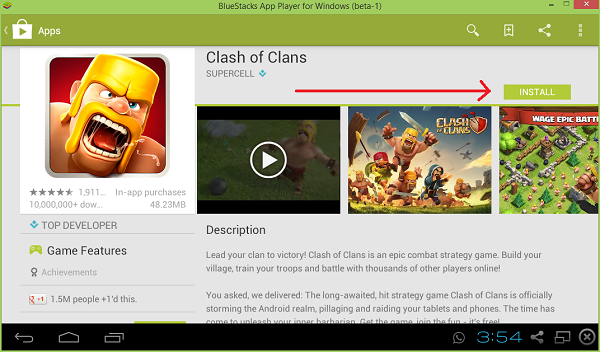
3. Now click on Search button and search for 'Clash Of Clans'.


4. Click on Clash Of Clans.
5. After that click on Install button to install Clash Of Clans on your Computer or Laptop.


6. Once downloading of game is completed you can play Clash of Clans on your PC/Mac.


Now you can play Clash of Clans on your Computers and laptops without much problems.I already tell you that Bluestacks required more than 1 GB RAM and a good graphic card for installing so if your Pc/Laptop don't have more than 1 GB RAM then you should use any other android emulators like YouWave and Genymotion to run android apps and games on Pc.So if you face any problems in downloading and installing Clash of Clans for Pc/Laptop then comment below or contact us.So you like this article then share it with your friends.

Sunday, 9 March 2014

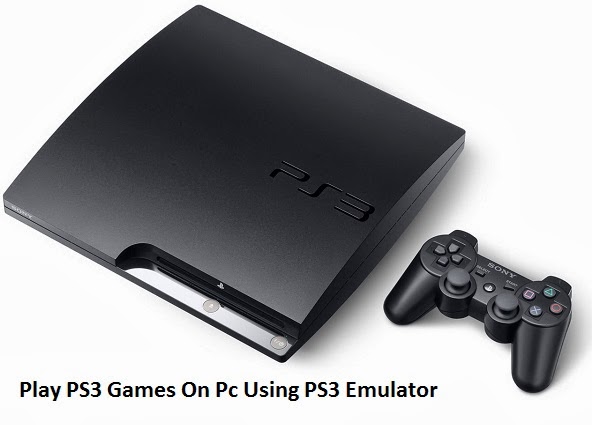
How To Play PS3 Games On PC Using PlayStation 3 Emulator

Run Playstation 3 Games On Windows 8,7,Vista and XPPlayStation 3 is best gaming console to play video games.Everybody want to play PlayStation games in their free times because of their high quality graphics and sounds.So today I am sharing an article to How to Play PlayStation 3 Games on Computer.You can play PS3 games on your Pc or Laptop by using a Playstation 3 Emulator.There are many emulators are available for playing PS2 games on PC but there is only one emulator is available in internet to play Playstation 3 games so it is very hard to run PS3 games on PC.So if you want to play playstation 3 on your computer then check out the requirement for playing PS3 games on Pc and follow the step-by-step guide given below.

Requirements To Run PS3 Games On PC :

  • PS3 Emulator
  • High Performance PC or Laptop
  • ISO File Of Game Which You Want To Run On PC

How To Play PS3 Games On PC Using PS3 Emulator :

1. First of all,Download PlayStation 3 Emulator in your computer or laptop having windows 8,7 and XP.You can download the PS3 Emulator by clicking here.
2. Install PS3 Emulator on your PC.
3. Open PS3 Emulator on your PC or laptop.
4. Now click on 'Yes' button to redirect to bios installer and make you sure that you have install the bios files in same directory where the playstation 3 emulator is installed.
5. Close and reopen the PlayStation 3 Emulator and if PS3 emulator don't detect any problem the you can play all playstation 3 games on your PC or laptop without any problems.
6. Now activate the Playstation 3 Emulator.
7. Now click on File and then click Load to select ISO file of Playstation 3 game which you want to play on your computer having Windows 8.1,8,7 and Xp.


Now you can easily run all Playstation 3 games on your PC or Laptop without any problems and if you get "The application failed to initialize properly (0xc0000135)" error then you should need to install Microsoft .Net Frameword 4.0 in your PC or Laptop.If Playstation 3 games are not worked smooth on your computers then you should play PS2 games on your PC.You can play PS2 games on your PC or Laptop by reading article How To Play Playstation 2 games on Pc Or Laptop.So if you face any problem in running Playstation 3 games on PC then comment below or Contact us.

Thursday, 6 March 2014

How To Lock Folder Without Using Any Softwares

How To Lock Folder Without Using Any Softwares
There are many softwares are available internet to lock your personal files and folders but most of them are paid and comes with lot of limitations.Hackers are increasing are increasing day by day in world.So today I am sharing the best method to password-protect files and folders without using any softwares.This method works for almost all Microsoft Windows.So if you want to lock your folders and files without using any software then follow the steps given below.


Steps To Lock Folders Or Files Without Using Any Software :

1. First of all,Open Notepad on your Computer or Laptop.
2. Now copy and paste the below code in Notepad.
cls
:End
@ECHO OFF
title Folder Locker - GeniusHelper
if EXIST "Control Panel.{21EC2020-3AEA-1069-A2DD-08002B30309D}" goto UNLOCK
if NOT EXIST Locker goto MDLOCKER
:CONFIRM
echo Are you sure u want to Lock the folder(Y/N)
set/p "cho=>"
if %cho%==Y goto LOCK
if %cho%==y goto LOCK
if %cho%==n goto END
if %cho%==N goto END
echo Invalid choice.
goto CONFIRM
:LOCK
ren Locker "Control Panel.{21EC2020-3AEA-1069-A2DD-08002B30309D}"
attrib +h +s "Control Panel.{21EC2020-3AEA-1069-A2DD-08002B30309D}"
echo Folder locked
goto End
:UNLOCK
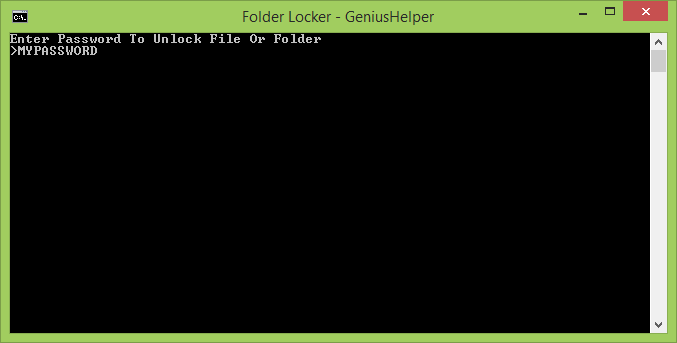
echo Enter Password To Unlock File Or Folder
set/p "pass=>"
if NOT %pass%==MYPASSWORD goto FAIL
attrib -h -s "Control Panel.{21EC2020-3AEA-1069-A2DD-08002B30309D}"
ren "Control Panel.{21EC2020-3AEA-1069-A2DD-08002B30309D}" Locker
echo Folder Unlocked successfully
goto End
:FAIL
echo Invalid password
goto end
:MDLOCKER
md Locker
echo Locker created successfully
goto End
:End

3. Change MYPASSWORD with your password and save the document with .BAT extension.

4. Now double-click on batch file which you created in previous step.
5. Now enter the password which you set to your folder and press enter.


6. After that you will see a folder on your desktop called 'Locker'.
7. Now paste all your files and folders which you want to lock in 'Locker' folder.
8. Now again double-click on batch file and type 'Y' and then press enter.
9. You can unlock your files and folders by opening batch file and then entering password.But this method is not secure because any can change the password by editing batch file so you should convert the .BAT to .EXE file to fully secure your files and folders.
10. You can convert the .bat file to .exe file using a software named 'Advanced BAT To EXE Converter'.You can download this software by clicking here.
11. Now install Advanced Bat To Exe Converter in your computer or laptop.
12. Open Advanced Bat To Exe Converter on your PC.
13. Now click on File >> Open and select the batch file which you want to convert.


14. After opening batch file,Save the .Exe file by pressing Ctrl+B.


Now you can delete the batch file and use this exe file to lock and unlock the your folders.So if you face any problem in locking files and folders without using any software then comment below or contact us.If you like this article then share it with your friends.

Thursday, 27 February 2014

How To Display Your Android Phone Screen On Computer

Android Mobile OS is becoming more and more popular.Many peoples want to became a Android developer or app test but app testing is not easy on small screen.So toady I am sharing an article with you to display your android phone's screen on your computer or laptop.You can display your Android phone's display on your computer using a software called Droid @ Screen.There are many apps are available in android market to share android phone's display with PC but most of them are paid or required rooted android phones.Droid @ Screen is free software with which you can share your android phone's display with your computers and laptops.This software not required any rooted android phone to share screen on computer.It is mostly used for training/teaching and demonstration purposes.So if you want to share your android phone's screen with your computer or laptop then follow the steps given below.
How to Share your Android Phone’s Screen on a Computer

How to Share your Android Phone’s Screen on a Computer :

1. First of all,Download and install Android SDK Tool in your PC by Clicking Here.
2. Now download and install Droid @ Screen in your computer by Clicking Here.
3. Now install latest version of Java in your computer and if you already have a latest version of Java then you can skip this step.
4. Now enable the USB Debugging on your Android phone.
5. Open Droid @ Screen on your computer.
6. Now enter the location of adb.exe(Android Debug Bridge) file as given below.
C:\Users\Your Account Name\AppData\Local\Android\android-sdk\platform-tools\adb.exe
7. Finally attach your android phone with your computer using USB cable.After that you'll able to view your Android phone's display on your computer.


Now you view your android phone's screen on your computer.The main problem in Droid @ Screen is its FPS(Frames Per Second) Rate.This software is good for you if  your not rooted and if you not want to purchase any paid softwares for sharing android phone's screen with PC then it is best software for you.So if this tutorial does not work for you then read the steps carefully or comment.If this article works for you then share it with your friends.

Tuesday, 25 February 2014

How To Trace Any Mobile Number With Name,Location,Operator

In these days,Almost everyone uses the mobile phones.They contact with their friends and family using a mobile phones.Mobile users are increasing day by day in the World.But many peoples use the mobile phones for disturbing peoples by giving miss calls to then.So today I am sharing an article with you to how to trace owner name and location of any mobile number.

How To Trace Any Mobile Number With Wikipedia In India :

Wikipedia is one of popular website in the World.It contains information about almost anything.But do you know that you an trace any mobile number with Wikipedia.You just need first four digits of any mobile number to trace it.In Wikipedia,You can check out location and operator of any mobile number.So if you want to trace any mobile number then visit Wikipedia Mobile Telephone Numbering.

Trace Any Mobile Number Using Mobile Tracker :

Mobile tracker also one of best website to track any mobile number.In this site,You just need to enter the 10 digit mobile number and after that you'll get information like location and operator.But this website only traces Indian mobile so it is big problem if mobile number is from foreign country.So if you want to trace any mobile number using Mobile Tracker then visit http://tracker.mobileringtonesstore.com.

Trace Owner Name Of Any Mobile Number Using TrueCaller :

You can also track the name of mobile number owner using a software called Truecaller.It is available for all major mobile operating systems.In Truecaller,You just need to enter ten digit mobile number for tracking the name of any mobile number owner.You can download the Truecaller for your phones by clicking here.

Now you can easily trace any mobile number by above methods.So if you face any problem in tracing any mobile number then comment below.If you like this article then share it with your friends.

Monday, 24 February 2014

How To Extract Password Protected Rar Files Without Password

How To Open .Rar Files Without PasswordEveryone in the Internet want to make more and more without investing much time so many peoples upload the password protected Winrar achieves in their sites and ask the visitors to complete survey to get password.But many peoples not know about completing surveys so today I am sharing an article with you to How to open password protected Rar files without password.I have already written an on extracting Zip files without password but many visitors ask that how can they open password protect Rar files without password.You can extract the password protected rar files using a software called Rar Password Unlocker.So if you want to extract your Winrar achieves without passwords then follow the steps given below.

How To Extract Password Protected Rar Files Without Password :
1. Download and install RAR Password Unlocker Tool in your PC.I recommend you to buy full version of RAR Password Unlocker Tool because trial version only allow you to extract rar files that have password less than 3 characters.So if you want to extract rar files that have long passwords then you should buy the full version.
2. Now open RAR Password Unlocker Tool in your Pc/Laptop.


3. Now click on Open button and select the .rar file which you want to extract without password.
4. Now select the Recovery method as "Brute-force Attack (Trying All Possible Combinations)".
5. Click on Start button.
6. Now RAR Password Unlocker Tool will start finding the password of your Winrar achieve.


Now you can easily open all rar files without any password.So if you face any problem in extracting your rar files without passwords or know any other method to extract rar files without passwords then comment or Contact us.If you like this article then share it with your friends.

Sunday, 23 February 2014

5 Best Sites To Download Torrent Files With IDM

5 Best Alternatives Of Zbigz
Every internet user want to download torrent files with IDM because IDM gives then high downloading speed than all other torrent downloading software.So today I am sharing 5 best websites to download torrent files with IDM.These sites allow us to download torrent files directly with Internet download manager(IDM).But most these sites don't allow free members to download unlimited data with unlimited speed.

5 Ways To Download Torrent Files With IDM :

1. Zbigz :

Zbigz is a online Bittorrent client which allow you to download torrent files directly with Internet download manager.The free members of Zbigz are allowed to download file smaller than 1 GB at a time.So if you want to download torrent files larger than 1 GB then you should buy the premium membership of Zbigz.The download speed for free members is limited to 150 KBPS.You can increase your downloading speed and bandwidth by purchasing premium membership of Zbigz.You can download torrent files with Internet Download Manager using Zbigz by reading article How To Download Torrent Files With IDM Using Zbigz.

2. Putdrive :

Putdrive is first online cloud downloader in the World.You can downloading the torrent files with IDM from Putdrive 100% anonymous that means your IP address and other details are remains unknown.In Putdrive,Free users can download torrent files with IDM without any speed limit.So if you want to download torrent files with internet download manager then visit www.putdrive.com.

3. Boxopus :

Boxopus is another website to download torrent files directly with Internet download manager.It need no torrent client to download torrent files with download managers.After uploading .Torrent file or pasting magnet link,You can easily download your torrents with IDM or save torrent files in your Dropbox account for future downloads.It supports music and video streaming that means that you can easily watch your torrent videos online and listen music online.So if you want to download torrent files with IDM using Boxopus then visit www.Boxopus.com.

How To Download Torrent Files With IDM Using Boxopus :

1. Visit www.Boxopus.com and sign in with your account.
2. Now upload .Torrent file or paste magnet link and then click Upload button.
3. Wait until Boxopus server caches the torrent file and then download your torrent file with internet download manager.

4. TorrentHandler : 

Torrenthandler is a website which allow us to download torrent files directly without using any BitTorrent Client.There is not speed limit for free users so that free members can downloading torrent files with IDM at high speed.You can download unlimited torrent files with IDM at a time using TorrentHandler.Sometimes the server takes very long time to caches torrent files so you can shut down your computer until caching completes and you'll receive a email from TorrentHandler.So if you want to download torrent files with IDM then visit www.torrenthandler.com.

5. Filestream :

Filestream is also one of best website to download torrent files with IDM.But it not allow free members to download torrent files larger than 1 GB.So if you want to download torrent files with IDM using filestream then visit www.filestream.me.


Now you can easily download all torrent files with Internet download manager or any other download manager.These all are best sites to download torrent files with IDM.So if you face any problem in downloading torrent files with IDM then comment below.If you like this article then share it with your friends.

Saturday, 22 February 2014

Fastest Way To Root Any Android Phone Without A Computer

how to root android phone without computer
Rooting an Android phone is very difficult process for new android users.If you root your android phone then all limitations of your phone are removed and you get full access to your phone.You can root your android phone without using any computer softwares by using a application called Framaroot.It was developed by the member of XDA Forums.Their are many advantages of rooting an android phone like you can run applications which are not approved by Google in your android phone but a mistake during rooting process might destroy your android phone.There are many disadvantages of rooting that it immediately voids your phone's warranty and performance becomes very poor.Before starting the rooting process you should check is your android phone supported or not at the end of article.If you want to root your android phone then follow the steps given below.

How To Root Any Android Phone Without Using A Computer :

1. First of all,Download Framaroot App in your Computer or Android phone by clicking here.
2. Copy Framaroot app to phone memory of your android phone.
3. Now install Framaroot in your android phone.
4. Now select 'Install Superuser'.
5. Now select any exploit from the list and wait for some time.
6. After that if you see a Success message then you have successfully rooted your android phone and if you see  failed message then try selecting any other exploit.
7. You can verify your android phone is successfully rooted or not by installing Simple Root Checker app from Google Play Store.

Now you can easily root your android phone without using any computer.So if your face any problem in rooting process then comment below.If you like this article then share it with your friends and other android users.

Friday, 21 February 2014

How To Use Two Whatsapp Accounts In Dual-SIM Android Phone

How To Use Multiple Whatsapp Accounts In Same Android Phone
There are many android phones are released every month and most of them are dual sim that means they supports two sim cards but Whatsapp supports only one account per phone so today I am sharing an article with you to How to use two Whatsapp accounts in same phone.There are many apps are released for doing this but SwitchMe is the best.Most of peoples use one mobile number for business and another mobile number for personal use but Whatsapp supports only one account per phone so peoples face many problems in using Whatsapp so if you want to use multiple Whatsapp accounts on your android smartphone then follow the steps given below.

What Is SwitchMe :

SwitchMe allows you to log in and out of multiple user spaces just as you would on a desktop computer, with each account having its own system settings, apps and data.
Requirements :

  1. Rooted Android Phone
  2. SwitchMe App
  3. Whatsapp

How To use Two Whatsapp Accounts In One Android Phone :

1. Download and install SwitchMe app in your android phone from Google Play Store.

2. Now open SwitchMe app in your android smartphone.
3. Now create a first profile in SwitchMe using any name.The first profile is called as the primary account.All your current settings,apps and data are stored in this account.You can run your first Whatsapp account in your android phone using this profile.
4. Now create a second profile in SwitchMe app.It is also called as secondary account.All your apps,settings and data which you have installed in your phone after buying are removed from second account and you have to installed them again in your second SwitchMe profile.
5. Now switch to second account.
6. Download and install Whatsapp in your android phone from Google Play Store.

Thursday, 20 February 2014

How To Block YouTube Ads In Chrome,Firefox And IE

Everyone in internet want to make more and more money so they put many advertisements on their Sites and YouTube videos.But many peoples don't like advertisements so today I am sharing an article with you to how block ads in YouTube.You can block video ads from YouTube and all other sites using Adblock Plus.It is used by millions of internet users in the World.So if you want to remove advertisements from YouTube then read the article below.
How To Block YouTube Ads In Chrome :
You can block ads from YouTube videos by using a chrome extension called Adblock Plus.This chrome extension removes all ads from YouTube and all other websites and makes then internet ads free for you.You can install this Chrome Extension in your Chrome browser by clicking here.


How To Block Ads From YouTube In Firefox :
You can also block ads from YouTube using a add-on called Adblock Plus.It block ads from Facebook,YouTube and all other sites.Yo can install this plugin in your Firefox browser by clicking here.


How To Block YouTube Ads In Internet Explorer :
Internet Explorer is one of popular browser in World.You can remove the ads from YouTube and all other sites using a software called Adblock Plus .You should need to install Adblock Plus software in your computer or laptop to remove ads from YouTube and other sites.You can download this software for internet explorer by clicking here.

Now you can surf the internet in Firefox,Chrome and Internet Explorer without any ads.So if you face any problem in disabling ads from YouTube then comment below.If you like this article then share it with your friends.

Monday, 17 February 2014

How To Play PlayStation 2 Games On Pc

How To Play PlayStation 2 Games On Pc
In these days,Most of us plays video games on computers, PlayStation and other gaming consoles daily.Video games are becoming more popular day by day.But many peoples get bored by playing boring pc games so today I am sharing an article with you to How to play PlayStation 2 games on pc and laptops.You can play PlayStation 2 games on your computers and laptops by using a software called PCSX2.It is the only PlayStation 2 emulator available for windows.But if you want to play PlayStation 2 games on your computers and laptops then the speed of your system should be very fast because PlayStation 2 games have more system requirements than PC games.

How To Run PlayStation 2 Games On Pc or Laptop :

1. First of all,Download PCSX2 PlayStation 2 emulator in your PC.You can download the latest version of PS2 emulator by visiting its official site.
2. Now install it on your computer or laptop.
3 Now download PlayStation 2 emulator Bios by clicking here.
4. Go to your documents and rename the PCSX2 folder with PCSX2 1.2.1 or something else.
5. Now create a new folder in documents with name 'PCSX2' and move the Bios which you downloaded in this folder.
6. Move the PCSX2 folder that you created in last step to folder called PCSX2 1.2.1.
7. Now open the program in your computer and set below settings in your PlayStation 2 emulator.

  • GS : Gsdx 4600
  • PAD - Lilypad svn
  • SPU2 - SPU2-x r4600m
  • CDVD - Linuz iso CDVD 0.9.0
  • USB - Usbnull Driver 0.7.0
  • FW - FWnull Driver 0.7.0
  • DEV9 - DEV9null Driver 0.5.0

8. Now select any Bios Rom and select the bios path as C:\Users\Username\Documents\PCSX2 0.9.8\PCSX2\bios.I recommend you to use USA console.
9. After that click on Finish button and you'll see start screen of PCSX2.
10. In this step you need to configure your controller so that you can play PS2 games on your computers and laptops with keyboard and mouse.You can configure your controller by clicking Config > Controller(Pad) > Plugin Settings.
11. Now click on Pad 1 and you'll see many buttons on right side.So configure every button with your keyboard or mouse.
12. Now click on CDVD > ISO Selector > Browse and select the ISO file of any PlayStation 2 game which you want to play on your computers and laptops and click on OK button.
13. Now click on System > Boot CDDVD and your game start screen will start showing in your computer.


Now you can easily play all PlayStation 2 games on your PC and laptops.So if face any problem in running PlayStation 2 games on PC's and Laptops then comment below or contact us.If you like this article then share it with your friends.
Thursday, 13 February 2014

5 Best Android Phones Under Rs.10000 In 2014

In these days,Everyone wants to buy a android phone because their are millions of apps and games available for it.But their are hundreds of android phones are available in market under Rs.10000.So today I am sharing top 5 best android phones under rupees ten thousand.

Top 5 Best Android Phones Under 10000 :

1. Micromax Canvas 2.2 A114 :
5 Best Android Phones Under 10000

Micromax Canvas 2.2 A114 is one of best dual sim android phone in India under Rs.10000.This android smartphone comes with Quad-core 1.3 GHz Cortex-A7 processor and 1 GB of Ram that makes this phone very fast and #1 in list of top 5 best dual sim android phones.It runs on latest Android 4.2 Jelly Beam operating system.You can watch high definition movies and play games on its 5.0" QHD Touchscreen Display.Main Features of Micromax Canvas 2.2 A114 are given below.

  • Screen Size : 5.0 Inch
  • Camera : 8 MP Primary and 2 MP Secondary Camera
  • RAM : 1 GB
  • Processor : Quad-core 1.3 GHz Cortex-A7
  • Internal Memory : 4 GB
  • Operation System : Android 4.2 Jelly bean 
  • Other Features : Bluetooth,Wi-Fi,GPS,Dual Sim Support

2. iBall Andi 5h Quadro :
Top 5 Android Smartphones Under 10000 Rupees

iBall Andi 5h Quadro is a Android Smartphone manufactured by iBall.It comes with 12 MP primary camera and 5 Inch QHD touchscreen display.Its 1.2 GHz Quad Core Processor and 1 GB RAM makes it more faster and second in list of top 5 android phones.More features of  iBall Andi 5h Quadro are given below.

  • Screen Size : 5.0 Inch
  • Camera : 12 MP Primary With LED Flash and 2 MP Secondary Camera
  • RAM : 1 GB
  • Processor : Quad-core 1.2
  • Internal Memory : 4 GB(2 GB User Available)
  • Operation System : Android 4.2 Jelly bean 
  • Other Features : Bluetooth,Wi-Fi,GPS,Dual Sim Support

3. Karbonn Titanium S5 Plus :
Android Phones Under 10K

Karbonn Titanium S5 Plus is an android smartphone manufactured by Karbonn and released on December 2013.It comes with Quad-core 1.3 GHz processor and 1 GB RAM which makes it very fast than all other android phones under Rs.10000.More features of Karbonn Titanium S5 Plus are given below.

  • Screen Size : 5.0 Inch
  • Camera : 8 MP Primary and Secondary Camera
  • RAM : 1 GB
  • Processor : Quad-core 1.3 GHz
  • Internal Memory : 4 GB
  • Operation System : Android 4.2.2 Jelly bean 
  • Other Features : Bluetooth,Wi-Fi,3G,Dual Sim Support

4. Samsung Galaxy S Duos 2 S7582 :
Top 5 Android Phones In India Under 10000

Now Samsung is becoming more and more popular in smartphones and tablets.Everyone want to buy a smartphone manufactured by Samsung but prices of Samsung smartphones are very high.So Samsung Galaxy S Duos 2 S7582 gets forth ranking in top 5 android smartphones.I think this is best android Smartphone under Rs.10000.Main features of Samsung Galaxy S Duos 2 S7582 are given below.

  • Screen Size : 5.0 Inch
  • Camera : 8 MP Primary and Secondary Camera
  • RAM : 1 GB
  • Processor : Quad-core 1.3 GHz
  • Internal Memory : 4 GB
  • Operation System : Android 4.2.2 Jelly bean 
  • Other Features : Bluetooth,Wi-Fi,3G,Dual Sim Support

5. Xolo Q1000 Opus: :

Xolo is always my favourite brand in smartphones and tablets because it offers smartphones at very cheap prices.Xolo Q1000 Opus is also manufactured by Xolo.It comes with Quad-core 1.2 GHz processor and 1 GB RAM.Main features of Xolo Q1000 Opus are given below.

  • Screen Size : 5.0 Inch
  • Camera : 5 MP Primary Camera With Led Flash and VGA Secondary Camera
  • RAM : 1 GB
  • Processor : Quad-core 1.2 GHz
  • Internal Memory : 4 GB
  • Operation System : Android 4.2 Jelly bean 
  • Other Features : Bluetooth,Wi-Fi,3G,Dual Sim Support 
Read:


These are the top 5 android smartphones under Rs.10000.So if you have any questions about these smartphones then contact us or comment below.If you like this article then share it with your friends.
Tuesday, 11 February 2014

How To Check 2G/3G Internet Data Balance in Tata Docomo,Aircel,Vodafone,Idea and Airtel

How To Check 2G/3G Internet Data Balance in Tata Docomo,Aircel,Vodafone,Idea and Airtel
Almost 20 percent of peoples in the world uses internet on their Smartphones and computers.Most of them use internet on their mobile phones by using Idea,Airtel,Tata Docomo, Vodafone internet services.But many mobile users not know 2G/3G Internet remaining data checking codes so today I am sharing an article with you to How to check remaining internet data balance in Airtel, Docomo,Vodafone, Idea and other mobile internet services.The main problem peoples face after data balance is remaining zero is their main balance is start deducting.

How To Check 2G/3G Internet Data Balance in Tata Docomo :

You can check the remaining internet data balance of your Tata Docomo sim card by dialling *111*1# on your mobile phone.

How to Check 2G/3G Data Balance In Idea :

1. Open Idea Net Setter application on your mobile.
2. Now click on USSD in Idea net Setter application.
3. Now type *125# and click on Send button.
4. After that you'll receive a text message on your mobile phone with remaining internet data balance.

How To Check Internet Balance Of Airtel :

If you want to check your Airtel 2G data balance then dial *123*10# and if you want to check your Airtel 3G internet balance then dial *123*11#.

How To Check 2G/3G Internet Balance In Aircel :

You can know your Aircel 2G internet balance by dialling *111*9# on your mobile and if you are using the 3G internet then you can check your Aircel 3G internet balance by dialling *111*10# on your smartphone.

How to Check 3G and 2G Internet Data Balance in Vodafone :

If you want to check your Vodafone 2G or 3G remaining internet balance and validity then send one of below sms.

  • GPRS to 144
  • DATA BAL to 144
Now you can easily check your remaining internet balance of your operators.So if you face any problem or have any question about this article then comment below or contact us.If you found this article helpful then share it with your friends.

Wednesday, 5 February 2014

5 Best Ways To Increase Backlinks of Your blog

how to increase backlink in blog
Backlinks are one of most important thing in search engine optimization.All bloggers and webmasters want to build quality backlinks for their blog but most of then are not know about building backlinks so today I am publishing an article to How to Build Quality Backlinks For Your Blog Fast.Alexa rank and Google Page Rank will depends on number of quality backlinks so if your blog's backlinks are increased then your blog's ranking in search engines will also increased.So if you want to increase backlinks of your blog then read the tips given below.


How To Increase Backlinks Of Your Blog Fast :


1. Blog Commenting :


One of best thing to increase backlinks of your blog is commenting on others blogs.Most of us don't know about blog commenting and most of then are know about blog commenting but they don't know to how to comment on right blogs to increase backlinks and Page Rank.I see many bloggers who comments on others blogs but they don't comments on right blogs so always comments on blogs that have high Page Rank and CommentLuv/KeywordLuv enabled.You can find the CommentLuv and KeywordLuv enabled blogs by visiting DropMyLinks.Com.In DropMyLink,You just need to enter the keyword and select KeywordLuv from drop down menu.But please note that don't publish spam comments on others blogs because it will decrease your blog's ranking and harm your blog.Always spend at least 30 Min - 60 Min daily on commenting on others blogs and publish at least 10 comments on KeywordLuv/CommentLuv enabled blogs.


2. Guest Posting :

Guest posting is also one of best way to get quality backlinks for your blog.Most of us are knows about guest posting but many bloggers not publish articles on others blogs because it is very difficult to publish articles on our own blogs and then publish in others blogs.Guest posting profitable for both blog owner and author.In guest posting,Blog owner will get free quality articles for his blog and blog author will get free high quality dofollow links and backlinks.You should add your blog link in article and Author bio while submitting guest post in others blogs.If you want to submit guest post in Geniushelper.org then contact us by visiting our Contact us page.


3. Social Media :

The easiest way to get quality backlinks and traffic is social media promotion.Almost everyone in the world use social networking sites like Facebook and Twitter.So share your unique content in these social media sites and get free quality backlinks and traffic.You should share your articles in groups about your blog niche on social networking sites.You should also use social media buttons in your blog to get followers in social media sites.Five most popular social networking sites are given below.

1. Facebook
2. Twitter
3. LinkedIn
4. Google Plus
5. YouTube


4. Using Forums :

Forums are also one of best method to build backlinks and increase traffic.In forums,You should reply the answers of questions or start new threads.But you should add your blog's link in your profile signature.You should publish correct answers otherwise you cannot build reputation in forums.Some most popular forum sites are given below.

1. Digital Point Forums
2. Warrior Forums
3. Sitepoint Forums


5. Directory Submission :


There are many free web directories are available on internet.You should submit your blog in these online web directories and after that you will get free quality backlinks from these directories.


Last Words :


These all are best ways to build huge number of quality backlinks.After applying these things you will see that your backlinks and organic traffic is start increasing.You can check your blog's backlinks by visiting BackLinkWatch.Com.So if you have any other method to increase backlinks then contact us.If you face any problem in applying these methods then comment below.If you found this article helpful then share it with your friends and subscribe us.

Monday, 3 February 2014

Download Whatsapp For Pc Without Using Bluestacks - Windows 8.1/8/7/XP

download whatsapp for pc
Whatsapp is a most popular messaging application in the World.It is available for Android,iPhone, Blackberry ,Window Phones and Nokia smartphones.Generally, It is not available for computers and laptops but you can use this messaging app on your computer having windows 8,windows 7 and windows XP by reading the methods given below.Last month,I share a article with you to How to run Whatsapp on computer with Bluestacks but our reader thought that Bluestacks required a minimum of 2 GB RAM and a good graphic card.So today I am sharing an article with you to How to use Whatsapp on your Pc having Windows 8.1,Windows 8,Windows 7,Windows XP and Windows Vista without using Bluestacks.

Method 1 : Install WhatsApp On PC Using Youwave Android Emulator :


Youwave is a powerful application to run android apps and games on your computers or laptops.You can also run the all android games and applications by using Bluestacks android emulator,But in order to install Bluestacks android emulator you need at least 2 GB of Ram and a graphic card.So if your computer's RAM is more than 2 GB then you can run Whatsapp on your PC by reading a article to install Whatsapp on PC.But if your computer's RAM is less than 2 GB then your can run Whatsapp in your computer or laptop by reading the steps given below.


1. Download and install Home version(10 day trail) of Youwave Android Emulator.
2. Open the trail version of Youwave in your computer or laptop.
3. Now click on View > Online Content and then click on Whatsapp in Online Apps.If you not find Whatsapp in Online content then you can look for it on app stores.

4. After downloading Whatsapp,Go to View > Apps and click on Whatsapp to run it on your computer or laptop.
5. Now click on Agree & Continue.
6. Select your Country and enter your Mobile Number as shown in image below.

Install whatsapp on pc

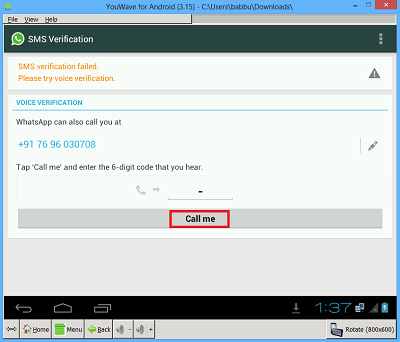
7. If your mobile number verification is failed via SMS then click on Call Me button.

whatsapp download for pc and laptop

8. After clicking on Call Me button,You will receive a phone call on your mobile.Hear the verification code and enter it on your computer/laptop screen.
9. Now enter your name and you will successfully install Whatsapp on your PC.

In starting,Their are no contacts available in your Whatsapp account because you are not using the Whatsapp on your smartphone.But you can add the contacts on your Youwave Whatsapp account manually.

Method 2 : Run Whatsapp On Your Pc By Using Wassapp Client :

free download whatsapp for pc

1. Download and install Wassapp Client on your computer/laptop by clicking here.
2. Open Wassapp Client in your Pc.
3. Now Log in on Wassapp Client with your Whatsapp account.If you not know about your Whatsapp account password then click on What is my password ?.


Now you can easily use Whatsapp on your computer or laptop by using one of above methods.So if you face any problem in using Whatsapp on your Pc then comment below or contact us by visiting our Contact us page.If you found this article helpful then share it with your friends and other peoples.

Sunday, 2 February 2014

Add Professional Facebook Like Box In Blogger

Facebook Like Box or Fan Box is a great plugin provided by Facebook Developers.Everyone knows that Facebook is the best site to promote your blog post because almost every internet users have a account on it.It allows your visitors to easily subscribe to your blogger blog with Facebook account.It also allows Bloggers and Webmasters to promote their Facebook pages on their blogs and websites.Facebook users can easily subscribe to your blog by simply clicking on like button and they will receive every post that you will share on your Facebook Fan page.Before adding a Facebook like box to blogger,You should has a Facebook fan page created on Facebook.If you not has a Facebook fan page then you can create it from Facebook.com.So if you want to add Facebook Like Box to your blogger blog then read the step-by-step instructions given below.


How To Add Facebook Like Box Widget For Blogger


Add Facebook Like Box In Blogger Blog :


1. Go to Facebook Developers.
2. Change the Facebook Page URL with your Facebook page address as shown in image below.
3. Enter your Facebook like box width and height.

4.  Now click on 'Get Code' button and after that you will see two codes.

Facebook Like Box Plugin For Blogger Blog

5. Now go to Blogger Dashboard > Your Blog > Template > Edit Html and search for <Body> by pressing Ctrl+F.
6. Now go to Layout of your blogger blog and click on Add a Gadget in sidebar.

Add Facebook Like Box in Sidebar In Blogger Blog

7. Click on 'HTML/JavaScript' and paste the second code in widget content.
8. Now Click on 'Save' Button and then click on 'Save arrangement' button.


Now Facebook Like Box or Fan Page will start showing on your blogger blog and if you face any problem in adding Facebook Like Box then comment below or contact us by visiting our Contact us page.If you like this article then share it with your friends and other peoples.