Showing posts with label WhatsApp. Show all posts

Wednesday, 16 April 2014

How To Add Pictures/Videos And Other Files In Bluestacks Apps

Bluestacks is one of best android emulator in the World.It is available for all major operating systems.It is used 10 Million peoples from all over the World.Most of peoples used this Android emulator for running Messenger apps.But main in this android emulator is that we cannot use Computer's images and other data files in Bluestacks apps.So today I am sharing an article to add computer images and other data files to Bluestacks apps.

How To Save Pc Pictures/Videos/Files To Bluestacks :

1. First of all copy the Photos,Videos and other files which you want to use in Bluestacks Apps.
2. Paste these files in Bluestacks Shared Folder.You can find the Bluestacks Share Folder at below destination.
C:\ProgramData\BlueStacks\UserData\SharedFolder
3. Now open Bluestacks on your Pc/laptop and then launch Es File Explorer.If Es File Explorer is not installed in Bluestacks then you can install it by following below steps.

How To Download Es File Explorer On Bluestacks :

  1. Open Bluestacks on your Pc/Laptop.
  2. Click on Search button.
  3. Now search for 'Es File Explorer' and if you find it in search results then click on it.
  4. Now click on Install button and Google Play Store will start installing Es File Manager on Bluestacks .After installation is completed you can use it on your Pc/Laptop for accessing your files and folders.


4. After launching Es File Explorer,Click on BstFolder and here you can find all data which you paste in Bluestacks Share Folder.


5. Now copy all your Picture,Videos and other Data from Bst Shared Folder.
6. Click on Local on Left side and then click on Sd Card.
7. Now paste the files in SD card Folder.


8. Now you can see all your media files in Bluestacks Gallery.

How To Add Pictures/Videos In Bluestacks Gallery :

1. Copy all your Pictures,Videos and all other files which you want to add in Bluestacks Gallery.
2. Now paste these files to My Documents Library.
3. Open Bluestacks on your Pc and then open Es File Manager.If Es File Explorer is not installed in your Pc then you can download it from Google Play Store.
4. After opening Es File Explorer click on Windows folder.
5. Click on Documents folder.
6. Now Single-click on Picture,Video or any other file which you want to use in Bluestacks apps.
7. Now select the app in which you want to use this file.


Now you can import all your data files from your Computer in Bluestacks.So if you face any problem then comment below or contact us.if you like this article then share it with your friends.


Sunday, 6 April 2014

How to Lock Whatsapp With Password in Android Phones and iPhone

How To Lock Whatsapp With Password
Today I am sharing an article with you to how to password protect the Whatsapp in your Android phones and iPhone.Many times you forget your phone in homes and offices and you want to secure your phones from your parents and friends.But their is no feature in Whatsapp to lock the messages and contacts.You cam lock Whatsapp in your Android and iPhone by using third party apps.So if you want to lock your Whatsapp in Android and iPhones then follow the steps given below.


How To Lock Whatsapp In Android Phones And Tablets :

1.First of all download Whatsapp Lock Free app from Google Play Store on your Android Phone by Clicking Here.
2.Install Whatsapp Lock app in your Android phone.
3.After installation is completed,Whatsapp Lock App will ask you to set 4 digit pin and configuration option.
4.Set 4 digit pin as a password in whatsapp.
5. You can lock your Whatsapp with Pattern Lock or Number Mode by clicking on Advanced Settings.Please note that if you're using any battery booster or ram booster then you should uninstall it because it will kill the Whatsapp Lock.

Main Features Of Whatsapp Lock App:

  • It Is Free Available in Google Play Store.
  • It Can Lock Your Whatsapp Messages.
  • You Can Customize Auto Lock Time.
  • Capture Photograph When Someone Enter Wrong Password.
  • It Is Simple User Interface.
  • Best Whatsapp Locker In Google Play Store

2.Alternate Method For Locking Whatsapp In Android Phone :

This app is also same as first one.It also use for protecting Whatsapp messages and your private chats.It has a simple user interface and it is very easy to use.but it contain pattern locking system that makes it more beautiful.

  1. Download Lock for Whatsapp from Google Play by Clicking Here
  2. Install lock for whatsapp in your Android phone.
  3. Set Password
  4. Enjoy

How To Lock Whatsapp In iPhone and iPad :

  • Download Lock Down Pro from iTunes by Clicking Here.
  • Install Lock Down Pro in your iPhone and iPad.
  • Set Password and enjoy.

Now you can password protect your Whatsapp by using above methods and if you face any problem in locking your Whatsapp in Android and iPhone then comment below or report us by visiting our contact us page.If you found this article helpful then share it with your friends.

Monday, 3 February 2014

Download Whatsapp For Pc Without Using Bluestacks - Windows 8.1/8/7/XP

download whatsapp for pc
Whatsapp is a most popular messaging application in the World.It is available for Android,iPhone, Blackberry ,Window Phones and Nokia smartphones.Generally, It is not available for computers and laptops but you can use this messaging app on your computer having windows 8,windows 7 and windows XP by reading the methods given below.Last month,I share a article with you to How to run Whatsapp on computer with Bluestacks but our reader thought that Bluestacks required a minimum of 2 GB RAM and a good graphic card.So today I am sharing an article with you to How to use Whatsapp on your Pc having Windows 8.1,Windows 8,Windows 7,Windows XP and Windows Vista without using Bluestacks.

Method 1 : Install WhatsApp On PC Using Youwave Android Emulator :


Youwave is a powerful application to run android apps and games on your computers or laptops.You can also run the all android games and applications by using Bluestacks android emulator,But in order to install Bluestacks android emulator you need at least 2 GB of Ram and a graphic card.So if your computer's RAM is more than 2 GB then you can run Whatsapp on your PC by reading a article to install Whatsapp on PC.But if your computer's RAM is less than 2 GB then your can run Whatsapp in your computer or laptop by reading the steps given below.


1. Download and install Home version(10 day trail) of Youwave Android Emulator.
2. Open the trail version of Youwave in your computer or laptop.
3. Now click on View > Online Content and then click on Whatsapp in Online Apps.If you not find Whatsapp in Online content then you can look for it on app stores.

4. After downloading Whatsapp,Go to View > Apps and click on Whatsapp to run it on your computer or laptop.
5. Now click on Agree & Continue.
6. Select your Country and enter your Mobile Number as shown in image below.

Install whatsapp on pc

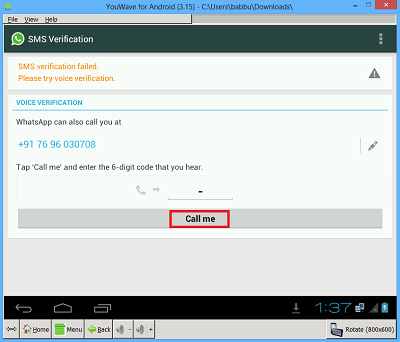
7. If your mobile number verification is failed via SMS then click on Call Me button.

whatsapp download for pc and laptop

8. After clicking on Call Me button,You will receive a phone call on your mobile.Hear the verification code and enter it on your computer/laptop screen.
9. Now enter your name and you will successfully install Whatsapp on your PC.

In starting,Their are no contacts available in your Whatsapp account because you are not using the Whatsapp on your smartphone.But you can add the contacts on your Youwave Whatsapp account manually.

Method 2 : Run Whatsapp On Your Pc By Using Wassapp Client :

free download whatsapp for pc

1. Download and install Wassapp Client on your computer/laptop by clicking here.
2. Open Wassapp Client in your Pc.
3. Now Log in on Wassapp Client with your Whatsapp account.If you not know about your Whatsapp account password then click on What is my password ?.


Now you can easily use Whatsapp on your computer or laptop by using one of above methods.So if you face any problem in using Whatsapp on your Pc then comment below or contact us by visiting our Contact us page.If you found this article helpful then share it with your friends and other peoples.

Wednesday, 13 November 2013

How To Disable or Hide Last Seen Time In WhatsApp For Android And iPhone

WhatsApp is number one instant messaging app.It is available for iPhone, BlackBerry,Windows Phone,Android and Nokia Phones. There are many features available in WhatsApp like create groups,send unlimited audio,video and image messages to their contacts in WhatsApp. On last week i posted a article on WhatsApp to How To Download and Install WhatsApp On Pc and readers give good respond to my article so today i am posting to how to disable or hide last seen time stamp in WhatsApp for Android and iPhone users.In Android you can disable last seen time by two easy methods.You can read these two methods and a simple method for iPhone users below.

Method 1 To Disable Last Seen Time In WhatsApp For Android Users:

1. Download and install Not Last Seen App on your Android device by clicking here.
2. Open Not Last Seen App and tick Block Last Seen.
3. Now open WhatsApp on your Android device and you will see that your mobile internet connection went off automatically.
4. Now read and compose messages,replies in your WhatsApp.
5. After closing WhatsApp you will see that your mobile internet connection enabled automatically and all your composed messages/replies will be sent automatically.

Also Read: Download And Install WhatsApp On Pc

Method 2 To Hide Last Seen Time In WhatsApp For Android Users:

1. Turn off your Android mobile internet connection or Wi-Fi.
2. Open WhatsApp and done all your activities like reading messages on WhatsApp.
3. Now quit the WhatsApp and turn on your internet connection or Wi-Fi.
4. After you internet connection is enabled WhatsApp will sync your messages/replies with their server and sent them without getting your last online statue.

Also Read: How To Download And Install BBM On PC

Hide/Disable Last Seen Time In WhatsApp For iPhone Users:

It is easier for iPhone users to remove last seen Timestamp because new version of WhatsApp for iOS have an option to remove or disable last seen Timestamp .you can remove last seen Timestamp by following below method.
1. Open WhatsApp Messenger.
2. Go to Setting >> Chat Setting >> Advanced and select off on last seen Timestamp.
3. Now you successfully disabled Last Seen TimeStamp in your iPhone.

Also Read: How To Upgrade To Widows 8.1 From Windows 8 For Free

If you face and problem in hiding Last Seen Timestamp from WhatsApp in Android phone and iPhone Please comment below or Contact me.

Monday, 28 October 2013

How To Download And Install WhatsApp On Pc

How To Download And Use WhatsApp On Computer
In this post i am sharing simple method with you to how to use whatsapp in windows and macs. WhatsApp is not officially provided for pc and laptop user,But with this method you can use whatsapp on pc without any problems.To use whatsapp on pc,mac or laptops you need a unlimited internet connection.Just follow these easy steps to download whatsapp.


Whats Is WhatsApp?

WhatsApp is mobile messaging app.It is available for Android,iPhone,Blackberry,Window Phones and Nokia.By using whatsapp users can create groups,send unlimited photos,videos and image messages to their Friends .WhatsApp is free messenger that means you  don't pay any money for using this.you only need unlimited data plan to use WhatsApp.


How To Download And Install WhatsApp On Pc Or Laptop:

1. In this step you need to download and install bluestacks in mac or windows by clicking here.
2. After installing is completed,open BlueStacks.
3. First click on My Apps And then click on App Search widget which is download by default 
4. A search box will appear and search for WhatsApp.
5.  Click on WhatsApp Messenger and BlueStacks will automatically start downloading whatsapp.
6. After download is completed.install whatsapp.
7. Now again click in My Apps and you will see that WhatsApp Messenger is added to my apps.
8. Click on WhatsApp and agree with terms.
9. Select your country and fill your mobile number,then click on OK button.
10. After completing 9th step whatsapp will  send you sms or voice verification.You just need to enter the received code from whatsapp in your pc or laptop.

Now with using BlueStacks you can use WhatsApp on your computers and laptops for free without any problems.If you face any problem then comment below.